DiskSorter GUI Screenshots | ||||||||
DiskSorter Main GUI Application

The DiskSorter main GUI application provides the user with the ability to classify one or more disks or directories, analyze, categorize and/or filter file classification results, export file classification reports to the HTML, PDF, Excel, XML, text or CSV formats, copy, move or delete specific file classes, class groups or individual files and much more.
File Classification Plugins
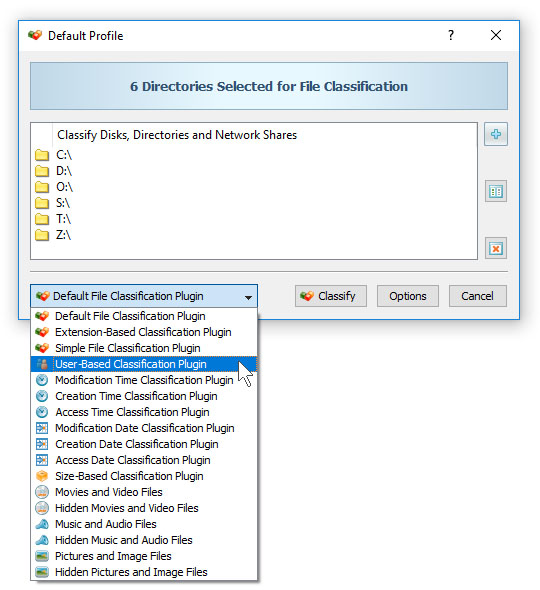
DiskSorter provides a large number of file classification plugins allowing one to classify and categorize files by the file type, extension, creation, last modification or last access dates, etc. Advanced users are provided with the ability to implement custom file classification plugins using an easy, XML-based format.
File Categories and Filters
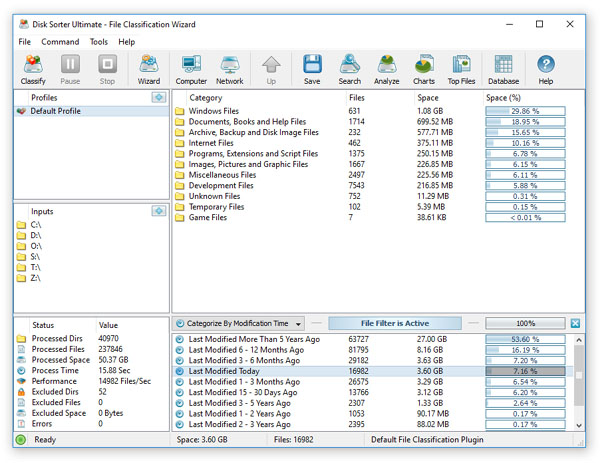
DiskSorter is capable of categorizing and filtering file classification results by the file type, size, user name, extensions, etc. The bottom part of the main GUI application shows the available file categories and allows one to apply one or more file categories as file filters limiting the currently displayed results to the selected file categories.
File Classification Pie Charts

The pie charts dialog is capable of showing the amount of used disk space and the number of files per class, category, extension, user name, last access, modification and creation times, etc. In addition, the user is provided with the ability to copy the chart image to the clipboard allowing one to easily integrate DiskSorter charts into presentations and documents.
Classifying Files in Network Servers and NAS Storage Devices

DiskSorter allows one to scan the network, discover network servers and NAS storage devices, automatically detect all accessible network shares and classify files in hundreds of network servers and NAS storage devices.
File Classification Options
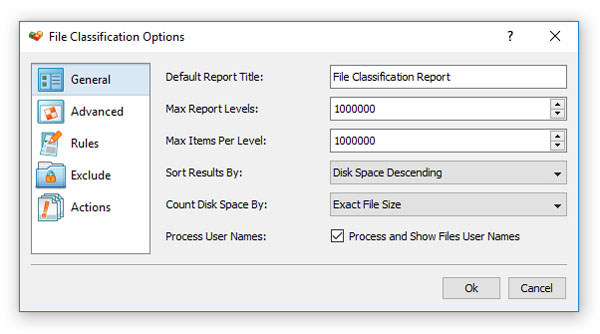
The file classification options dialog provides the ability to set the default report title, the speed of the file classification process, the number of parallel directory scanning and file classification threads, the results sorting mode, the disk space counting mode, etc.
File Classification Rules

The file classification rules dialog allows one to limit the file classification process to specific types or groups of files using one or more file matching rules.
DiskSorter Command Line Utility
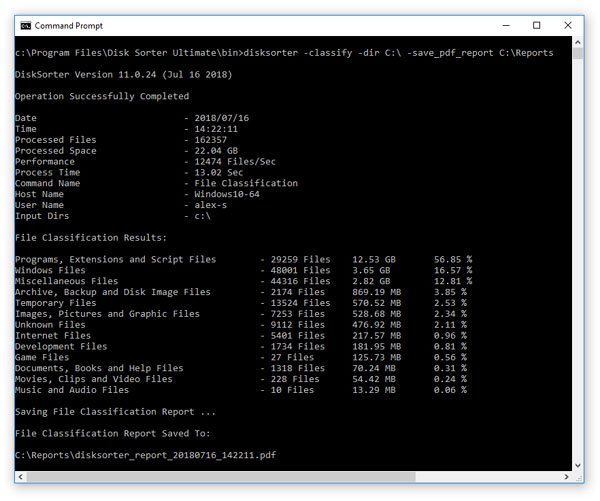
In addition to the DiskSorter GUI application, DiskSorter Pro and DiskSorter Server provide a command line utility allowing one to perform file classification operations, save file classification reports, export file classification results to an SQL database and control one or more DiskSorter Servers locally or via the network.
File Classification Server

DiskSorter Server is a server-based product version, which runs in the background as a service and is capable of performing multiple, parallel file classification operations, save file classification reports, submit reports to a centralized SQL database and perform advanced history trend analysis operations.
Disk Space Usage Per Host
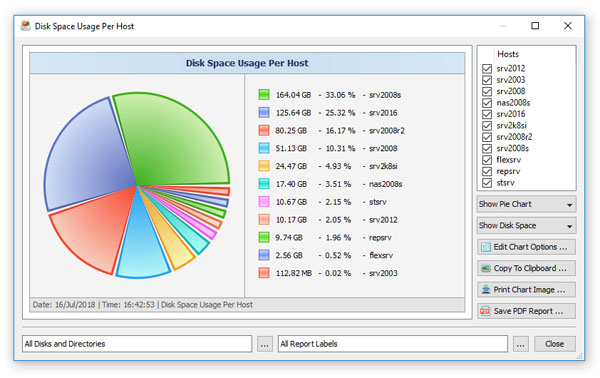
DiskSorter Server and DiskSorter Enterprise are capable of analyzing file classification reports submitted from multiple servers and desktop computers and displaying various types of charts showing file categories and disk space usage per host.
Disk Space Usage Per User
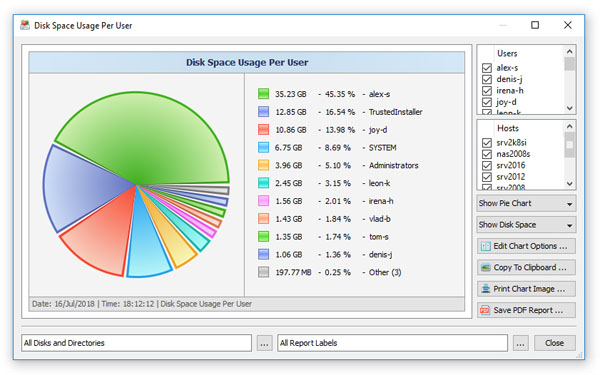
DiskSorter Server and DiskSorter Enterprise allow one to analyze file classification reports from multiple servers or desktop computers and display charts showing the number of files and the amount of used disk space per user for one or more file categories.
DiskSorter Enterprise Web-Based Interface

In addition to the DiskSorter client GUI application, DiskSorter Enterprise provides a web-based management interface allowing one to control one or more servers using a regular web browser locally or via the network.
|

|

|


