
|
|
|
|
Customizing DiskSorter GUI Application
The main DiskSorter GUI application includes a side-bar allowing one to select different types of status views and customize the GUI application. The user is provided with the file classification profiles view, the current profile view, the file classification process status view, the system status view, the disk space monitor view, the disk activity view, the disk transfer rate view and the disk IOPS view. In order to select a different status view, click the status menu button located in the top-right corner and select the required status view type. 
The file classification profiles status view displays the list of configured file classification profiles and provides the ability to add, edit and delete file classification profiles. In addition, the user is provided with the ability to start file classification operations, export, import, copy, rename and delete file classification profiles. For example, in order to add a new file classification profile, click the right mouse button over the file classification profiles view and select the 'Add Profile' menu item. The current file classification profile view shows the list of disks, directories and network shares configured to be processed during the file classification operation. The current profile view allows one to add, edit and delete input directories, disks and network shares. For example, to add a disk or directory to the current file classification profile, click the right mouse button over the current profile view and select the 'Add Input Directory' menu item. The file classification process status view displays the status of the currently performed file classification operation showing the total number of processed directories, the total number of processed files, the amount of processed disk space, the file classification process time, the performance of the file classification operation, the number of excluded directories, the number of excluded files, the amount of excluded disk space and the number of file classification errors. 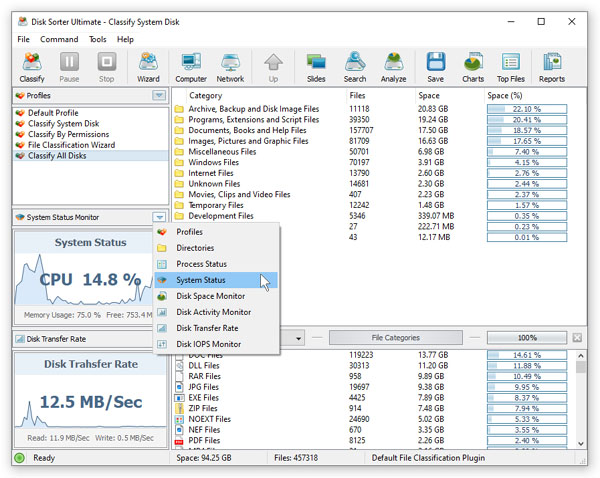
The system status view allows one to monitor the status of the computer during the file classification operations and shows the current system CPU usage, the system memory usage and the amount of the free system memory. When processing huge file systems containing hundreds of millions of files, a large amount of system memory may be required and it is a good idea to monitor the status of the system memory while processing large numbers of files. The disk space monitor status view displays the amount of the free disk space in the system disk. In addition, the status bar of the disk space monitor shows the total disk space, the used disk space and the percentage of the free disk space. When the amount of the free disk space changes, the disk space monitor displays a disk space change notification showing the amount of the changed disk space. 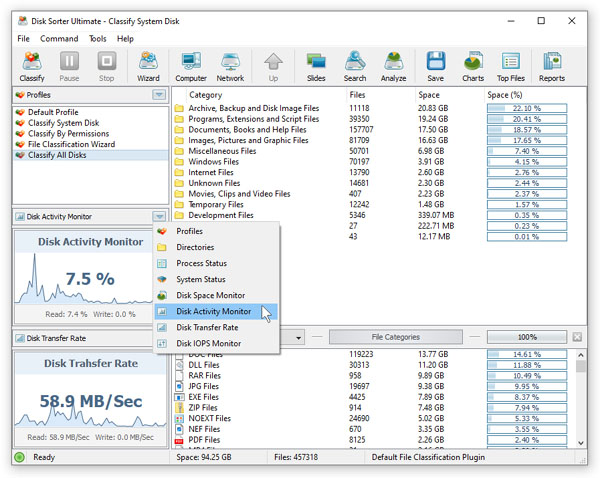
The disk activity status view shows the total disk activity level for all disks installed in the computer. In addition, the disk activity status view shows the level of read activity for all disks installed in the computer and the level of the write activity for all disks installed in the computer. If the user needs to perform a file classification operation on a production server, it may be a good idea to intentionally slow down the file classification operation in order to minimize the potential impact on the production applications. The disk transfer rate status view shows the total transfer rate in MB/Sec for all disks installed in the computer. In addition, the disk activity status view shows the disk read transfer rate in MB/Sec for all disks installed in the computer and the disk write transfer rate in MB/Sec for all disks installed in the computer. Finally, the disk IOPS rate status view shows the total disk IOPS rate for all disks installed in the computer. In addition, the disk IOPS rate status view shows the disk read IOPS rate for all disks installed in the computer and the disk write IOPS rate for all disks installed in the computer.
|
DiskSorter News
|


