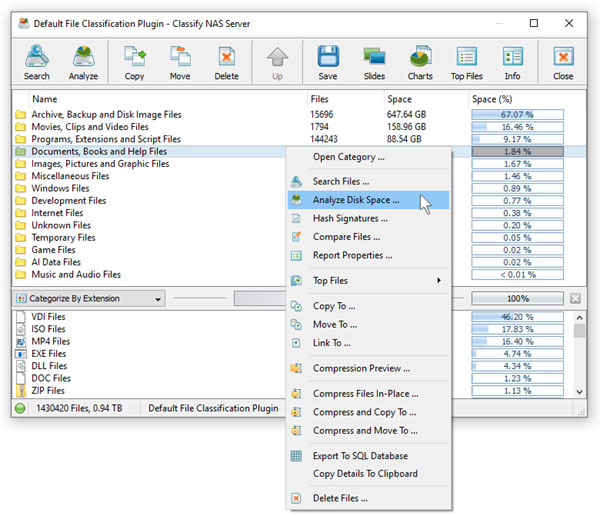
DiskSorter provides the ability to search files in file classification results by the file name, extension, full path, file category, file size, file attributes,
creation, last modification and last access dates. In order to start a file search operation, classify one or more disks or directories and press the 'Search' button located on the main toolbar.

By default, the search operation will be performed on all file classification results. In order to search files in a specific file category, select the category in the file classification
results view, press the right mouse button and select the 'Search Files' menu item.

DiskSorter will search in the selected categories of files and display the file search results dialog showing a list of files matching the user specified criteria.
The search results dialog allows one to filter and categorize file search results, display various types of pie charts, copy, move and/or delete files, export file
search results to a number of standard report formats including PDF, HTML, text, Excel CSV and XML. In addition, advanced users are provided with the ability
to export file search results to an SQL database.